Default screens
Introduction
AWE has some pre-designed common screens which are very useful for a first version of an application. This way you have already implemented user and profile management, some useful themes to customize the application, security management like screen access and screen configuration, and some higher level management like database, module and site configuration.
AWE also can visualize an auto-generated help screen based on the screen definition and some extra help and help-image
attributes. This help screen can be generated by screen or there is also an application help screen
which has documentation about the full application (based on the menu).
Users
User screen allows you to define, update or delete the users who can access the application and their default options, like language, mail server, default theme and initial screen.

Profiles
In profiles screen you can manage new profiles to group users in security categories, like administrators, regular users or special users.

Themes
Themes screen allows you to define new CSS themes for the application. In this screen you can only define the theme name, but you also need to generate the new CSS theme files in your application.

Now you can update the defined color schema for each theme on the Theme customization screen.
Simply select a theme on the Themes screen and click on the Customize button:

You will be redirected to the Theme customization screen where you can change a set of properties (mostly colors) to
customize the theme properties and adapt it to your needing:

When a property has changed, a save button will appear to store the modified value and show a preview of the theme on
the right panel.

Each theme has two modes, light and dark, which will be switched with the mode button on the navigation bar.
The navigation bar buttons are defined on the info-buttons.xml screen.
Here you have the themeModeSelector and the themeSelector.
Sites
This option is a high level option which allow you to separate application logic in sites, each one with its own database (or set of databases). Here you can define sites and the relationship between them and the databases they manage. You can also define the modules which can site can use.
Modules
A module is a special set of options defined on the menu which can be used to separate functionalities inside an application. A user can only have an active module at a time, so when the module is changed, menu options will be refreshed with common and module options.
This screen allows to define the selectable modules, based on the ones which are defined on the menu. Here you can also define the relationship between modules and profiles, users or sites (and databases).
Databases
In databases option you can manage a set of connections to datasources of any supported database types, like Oracle, SQL Server, H2, etc.
Inside a database management screen you can set the site/module configuration for each one.
Mail servers
Mail server option contains a set of external mail servers used to send e-mail in some parts of the application, like print screens and scheduler reports.
Each mail server defines:
| Field | Description |
|---|---|
| Alias | Server name (up to 100 characters). Users and emails refer to the server by this name. |
| Server | SMTP host. |
| Port | SMTP port. Leave it empty to use the default port of the security mode. |
| Security | Connection security: None, STARTTLS or SSL/TLS. |
| Authentication | None, User and password or OAuth2. |
| User / sender mailbox | User for user and password authentication, or sender mailbox for OAuth2. |
| Password | Only for user and password authentication. It is stored encrypted. On the update screen, leave it empty to keep the current value. |
| OAuth2 client registration | Only for OAuth2 authentication: the Spring Security client registration that provides the access token. |
Changes made on these screens are applied to the mail senders right away; there is no need to restart the application.
Default sender and email servers
awe.mail.enabled=trueturns on every mail feature. Without it the application sends no mail at all, not even through the servers of this screen.- The default sender is configured with the
awe.mail.*properties (notspring.mail.*). - To send a message, AWE takes the email server of the sending user (the user of the
SESSION_USERparameter when the send carries it, otherwise the user of the session): the mail server assigned to that user in the E-mail server field of the users screen. If the user has no server, or the server is not defined here, the message is sent through the default sender. - A mail server that cannot be read (for instance a stored value that is not valid) is left out, with an error naming the server in the log: the other servers keep working and the users of that server send through the default sender.
- A mail server with OAuth2 that is read but misconfigured (no TLS, no sender mailbox, unknown registration) never falls back to the default sender: its messages fail.
Both the mail servers of this screen and the default sender can authenticate with OAuth2: see OAuth2 authentication.
Security mode and port
| Security | JavaMail properties | Default port |
|---|---|---|
None | Plain connection | 25 |
STARTTLS | mail.smtp.starttls.enable=true and mail.smtp.starttls.required=true: the connection is upgraded to TLS and fails if the server does not support it | 587 |
SSL/TLS | mail.smtp.ssl.enable=true: TLS from the start (implicit TLS) | 465 |
A port typed on the screen always takes precedence over the default port.
Authentication types
- None: the server accepts messages without authentication (for example, an internal relay).
- User and password: SMTP AUTH with the user and the password of the server. The password is decrypted right before it is sent to the SMTP server.
- OAuth2: SASL
XOAUTH2with the sender mailbox and an OAuth2 access token instead of a password. See OAuth2 authentication.
Amazon SES example
Amazon SES uses user and password authentication with the SMTP credentials created in the SES console (they are not the IAM access keys):
| Field | Value |
|---|---|
| Server | email-smtp.[REGION].amazonaws.com |
| Port | 587 (or empty) |
| Security | STARTTLS |
| Authentication | User and password |
| User / sender mailbox | SES SMTP user name |
| Password | SES SMTP password |
OAuth2 authentication
A mail server of this screen, or the default sender, can authenticate with OAuth2 instead of a user and a password. Microsoft is disabling SMTP AUTH with user and password (basic authentication) in Exchange Online, and OAuth2 is the replacement. To set it up:
- Prepare the provider: an application that obtains tokens with the
client_credentialsgrant and may send from the sender mailbox (see the Microsoft 365 example). - Declare that application as a Spring Security client registration.
- Use the registration in a mail server of this screen or in the default sender.
- Send a message and read the log if it fails (see Troubleshooting).
How it works
- Before each SMTP connection, AWE asks Spring Security (
OAuth2AuthorizedClientManagerwith theclient_credentialsprovider) for an access token of the client registration. There is no user interaction: the application authenticates itself with its client id and client secret. - AWE connects to the SMTP server with TLS (
STARTTLSorSSL/TLS) and authenticates with SASLXOAUTH2: the user is the sender mailbox and the password is the access token, sent as aBearertoken. - The message is sent from the sender mailbox.
| Topic | Behaviour |
|---|---|
| Token cache | AWE keeps one token per mail server in memory (the default sender counts as one more server, awe.mail). Spring Security reuses it and requests a new one when it is about to expire (less than 60 seconds left). |
| Rejected token | When the SMTP server rejects the authentication, the cached token is discarded: that message fails and the next send requests a new token. |
| Token endpoint | Requests to the token endpoint have a 10 second connect timeout and a 30 second read timeout. |
| TLS | Required: the access token is a credential and is never sent over a plain connection. Without STARTTLS or SSL/TLS nothing is sent and no token is requested. |
| No fallback | A mail server or default sender with OAuth2 that cannot authenticate never falls back to another server, nor to user and password: its messages fail. |
| Login | client_credentials registrations are never offered as login options: single sign-on only uses authorization_code registrations, so a mail registration can live next to the SSO ones. |
| Without OAuth2 | An application without any OAuth2 client registration keeps sending mail with the None and User and password servers; the registration list of the screen is empty. |
| Secrets | The database stores only the registration id: the token URL, the client id and the client secret stay in the application configuration. Logs and errors name the server and the registration, never the secret or the token. |
| Providers | Any provider whose token endpoint supports the client_credentials grant and whose SMTP server accepts those tokens with XOAUTH2. The refresh_token grant, Google Workspace service accounts (JWT bearer) and OAUTHBEARER are not supported. |
Microsoft 365 example
On the Microsoft side:
- Register an application in Microsoft Entra ID and create a client secret. Write down the directory (tenant) id, the application (client) id and the secret value.
- Add the
SMTP.SendAsAppapplication permission (Office 365 Exchange Online) and grant admin consent. - Register the service principal of the application in Exchange Online (Exchange Online PowerShell), with the object
id of the enterprise application:
New-ServicePrincipal -AppId [APPLICATION_ID] -ObjectId [ENTERPRISE_APPLICATION_OBJECT_ID]. - Allow the application to send from the sender mailbox:
Add-MailboxPermission -Identity "noreply@contoso.com" -User [SERVICE_PRINCIPAL_ID] -AccessRights FullAccess. - Make sure SMTP AUTH is enabled on the sender mailbox:
Set-CASMailbox -Identity "noreply@contoso.com" -SmtpClientAuthenticationDisabled $false.
See Authenticate an IMAP, POP or SMTP connection using OAuth for the details of the Microsoft configuration.
The AWE side of this example is the office365-mail registration of the next section, used by a
mail server or by the default sender.
Client registration
Define a Spring Security client registration with authorization-grant-type=client_credentials and its provider
(token-uri, or issuer-uri to discover it) in the application properties. The registration id is the name the mail
server or the default sender refers to:
spring.security.oauth2.client.registration.[REGISTRATION_ID].authorization-grant-type=client_credentials
spring.security.oauth2.client.registration.[REGISTRATION_ID].client-id=[CLIENT_ID]
spring.security.oauth2.client.registration.[REGISTRATION_ID].client-secret=[CLIENT_SECRET]
spring.security.oauth2.client.registration.[REGISTRATION_ID].scope=[SCOPE]
# Provider: the token endpoint, or the issuer to discover it
spring.security.oauth2.client.provider.[REGISTRATION_ID].token-uri=[TOKEN_URI]
#spring.security.oauth2.client.provider.[REGISTRATION_ID].issuer-uri=[ISSUER_URI]
With the values of the Microsoft 365 example:
spring.security.oauth2.client.registration.office365-mail.authorization-grant-type=client_credentials
spring.security.oauth2.client.registration.office365-mail.client-id=[APPLICATION_ID]
spring.security.oauth2.client.registration.office365-mail.client-secret=[CLIENT_SECRET]
spring.security.oauth2.client.registration.office365-mail.scope=https://outlook.office365.com/.default
spring.security.oauth2.client.provider.office365-mail.token-uri=https://login.microsoftonline.com/[TENANT_ID]/oauth2/v2.0/token
Registrations are read at startup: restart the application after adding or changing one.
Mail server with OAuth2
Create (or update) the mail server on this screen and select OAuth2 as the authentication: the User field becomes
Sender mailbox and the OAuth2 client registration select appears, listing only the client_credentials
registrations. When the security is None, selecting OAuth2 switches it to STARTTLS. With the Microsoft 365
registration:
| Field | Value |
|---|---|
| Server | smtp.office365.com |
| Port | 587 (or empty) |
| Security | STARTTLS |
| Authentication | OAuth2 |
| Sender mailbox | The mailbox that sends the messages, for example noreply@contoso.com |
| OAuth2 client registration | office365-mail |
Then type the alias of the server in the E-mail server field of the users that must send through it. The other users keep sending through the default sender (see Default sender and email servers).
Default sender with OAuth2
The default sender authenticates with OAuth2 when awe.mail.oauth2-registration names a client_credentials client
registration. awe.mail.user is the sender mailbox, awe.mail.pass and awe.mail.auth are not used, and
awe.mail.tls=true (STARTTLS, required) or awe.mail.ssl=true is mandatory. With the Microsoft 365 registration:
awe.mail.enabled=true
awe.mail.host=smtp.office365.com
awe.mail.port=587
awe.mail.tls=true
awe.mail.user=noreply@contoso.com
awe.mail.oauth2-registration=office365-mail
If TLS/SSL or the user are missing, or the registration does not exist or is not client_credentials, an error naming
the property and the registration is logged at startup, the application starts, and every message of the default
sender fails with an authentication error: no token is requested and no message leaves without OAuth2. Without
awe.mail.oauth2-registration the default sender works as before.
Troubleshooting
AWE writes these errors to the application log, and the send that hits them fails with an authentication error. The
mail servers of this screen are checked when they are loaded (on the first send and after a change on this screen) and
on each send; the default sender is checked at startup and on each send. <server> is the alias of the mail server, or
awe.mail for the default sender, and <id> is the registration id.
| Message | Meaning and fix |
|---|---|
Email server '<server>' uses OAuth2 authentication without STARTTLS or SSL | The security is None. Select STARTTLS or SSL/TLS; for the default sender, set awe.mail.tls=true or awe.mail.ssl=true. |
awe.mail.oauth2-registration '<id>' needs awe.mail.tls=true or awe.mail.ssl=true: every email of the default sender fails | Startup error of the default sender: same fix. |
Email server '<server>' uses OAuth2 authentication without a sender mailbox | The mail server has no sender mailbox: type it on the screen. |
awe.mail.oauth2-registration '<id>' needs awe.mail.user (sender mailbox): every email of the default sender fails | Startup error of the default sender: set awe.mail.user. |
Email server '<server>' uses an unknown OAuth2 client registration '<id>' | There is no spring.security.oauth2.client.registration.<id>.* with that id: check the spelling and that the properties reach the application. |
Email server '<server>' uses OAuth2 client registration '<id>', which is not client_credentials | The registration has another grant (for example the authorization_code of the login): define a separate registration with authorization-grant-type=client_credentials. |
awe.mail.oauth2-registration '<id>' cannot be used: <message> | Startup error of the default sender; <message> is one of the two previous errors. |
Email server '<server>' could not obtain an OAuth2 access token from registration '<id>' (<code>) | The token endpoint did not return a token. <code> is the OAuth2 error of the provider (see below). Nothing is sent to the SMTP server. |
SMTP 535 answer (Microsoft 365: 535 5.7.3 Authentication unsuccessful) | AWE obtained a token but the SMTP server refused it for the sender mailbox. Check the SMTP.SendAsApp permission and its admin consent, the service principal, the mailbox permission of that exact mailbox, and that SMTP AUTH is enabled on it. The token is discarded, so the next send requests a new one. |
<code> | Usual cause |
|---|---|
invalid_client, unauthorized_client | Wrong client id or client secret (an Entra ID client secret expires), or the application does not belong to the tenant of the token-uri. |
invalid_scope | The provider does not accept the scope. For Microsoft 365 it is https://outlook.office365.com/.default. |
invalid_token_response | No valid token answer: the token endpoint cannot be reached, it did not answer within the timeouts, the token-uri is wrong, or the answer is not an OAuth2 token response. |
no access token | The token endpoint answered without an access token. |
Upgrading
The Flyway migration AWE_V1.2.3__Email_server_settings (every supported database) widens the server name (100), the
user (255) and the password (512) columns of AweEmlSrv and HISAweEmlSrv, and adds the SecMod (security mode) and
OauReg (OAuth2 client registration) columns. Existing servers keep working as before: no security mode means None,
no port means 25, and the authentication values 0 (none) and 1 (user and password) do not change; 2 is OAuth2.
In previous versions the password saved through this screen reached the SMTP server encrypted, so servers with user and password authentication could not authenticate. The password is now decrypted before it is sent, and those servers authenticate correctly. A password that cannot be decrypted (for example, one inserted in plain text directly in the database) is used as stored.
Message queues
This option can define a list of message queues to be used as external communication with AWE applications. Each entry contains a broker queue definition which can be used by the Queues.xml file.
Sequences
The sequences screen contains a list of identifiers and sequence values which awe uses in maintain files. These sequences are used as if they were autonumeric fields, very useful for old database models without autonumeric fields.
Application parameters
The application parameters screen defines a sort of extra application properties which can override the ones defined
on application.properties file. This is an extra layer to improve application customization.
Broadcasting
This screen is simply a way to send messages to all connected users inside the application, or a specific message to a single user.
It will appear as a message in the top side of the screen.
Log
The log screen contains access to all the application logs. This will be deprecated soon in order to give way to new observability stack in a distributed architecture.
Screen access
Screen access contains a list of option restrictions which can be defined to all application users, to a specific profile or even to a specific user.
You can search a specific restriction with the upper criteria, or update
Menu access
This is a new screen designed to improve the usability of menu option restriction.
In this screen you have a menu tree and three criteria: User, Profile and Module.
The tree below is based in the selections you have picked in the criteria: for example, the initial tree shows the
restriction menu for all users and all profiles, for the options which doesn't belong to any module.
When you select a module in the criteria, the tree below will show all the menu options for this module, including the options which doesn't have module defined.
If you pick a profile in the Profile criterion, the tree will show the restrictions for this profile (and in the
access column you will see the general restrictions for all users and profiles for each option).
Picking a user in the User criterion will make the tree to show the restrictions for the user. The access column
will show the specific restrictions for the user profile in each option.

To change the restrictions for any option, you can do it by selecting the option and doing right-click on it. It will show a context-menu with the restriction options (allow, restrict or remove restriction in case of defined). You can also select the option and click on the buttons below the tree to change a restriction value.
Encrypt util
This option is very useful to generate encrypted values or properties. Simply put on the text you want to encrypt
on the Text criterion and push the Encrypt button. You will have filled the Encrypted text with the
text you need to add in database encrypted columns and the Encrypted property which is the encrypted text to be used
in application.properties file values.

Screen configuration
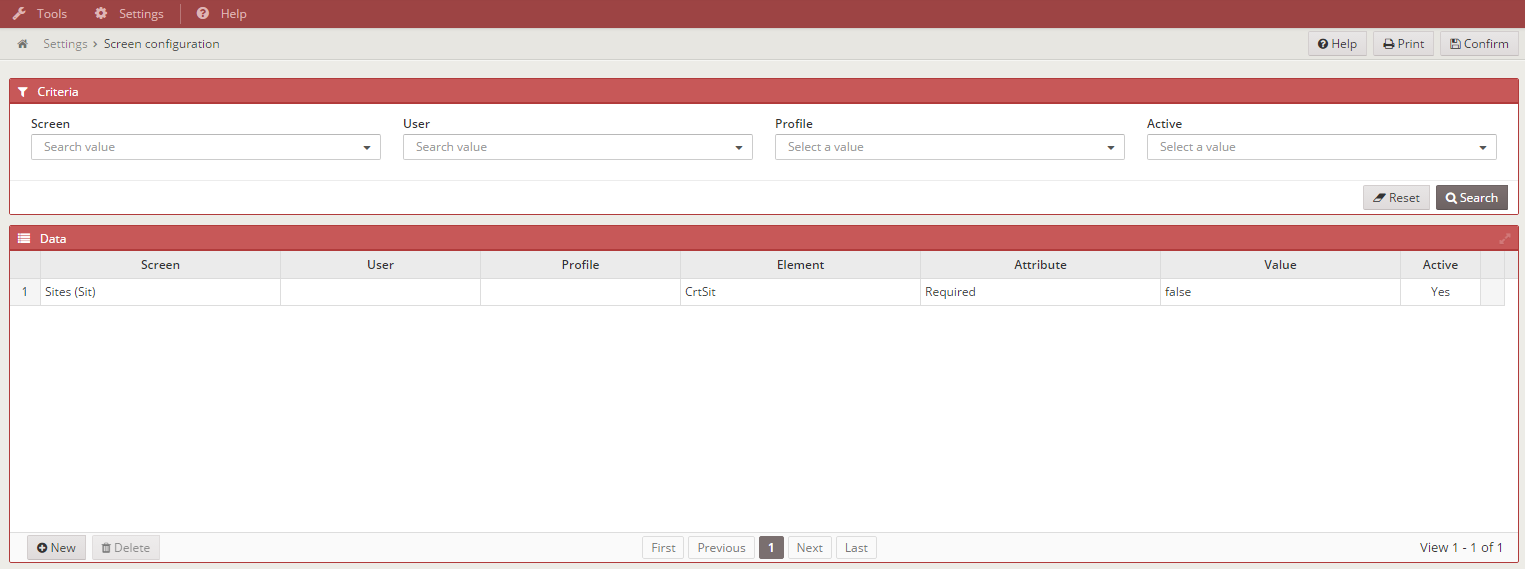
This screen allows to change the functionality of the screen defined in XML file. The new functionality is stored in the database, and it can be restricted by user or profile. To change a screen element you only have to define the screen, the element to be restricted/modified and the attribute with the new values.
Example:
If we have a criteria that will be required validation="required".
<criteria id="CrtSit" label="PARAMETER_NAME" component="suggest" server-action="data" target-action="SitSug" style="col-xs-7 col-sm-6 col-lg-3" validation="required"/>
And we want to be not required, put the new configuration like in the picture below:
How to use it:
If you want to access and use this screen, put the next option in your private.xml or public.xml.
<option name="screen_configuration" label="MENU_TOOLS_SCR_CNF" screen="ScrCnf" icon="laptop" />
User manual
This option allows the user to access a PDF file defined on the application, as a user manual. This PDF file can be defined in some languages
Application help
