awe-106 Actions and dependencies
This tutorial is where static screens start to behave like applications. Actions define what happens when users or components trigger work. Dependencies define when components should react to values, events, or server results.
Quick path
- Start with a small button action chain.
- Decide which actions stay in the browser and which call the server.
- Add dependencies only where the screen truly needs dynamic behavior.
- Prefer predictable action order over clever but hard-to-debug chains.
Before you start
You should already have:
- a screen shell from awe-102
- criteria, grids, or charts from awe-103
- the related queries or maintains from awe-104
Keep the mental model simple:
button or event -> action stack -> optional server call -> UI update
component values/events -> dependency evaluation -> component update or action launch
Step 1: Build the action flow
Actions can run in the client, on the server, or as a chain that mixes both.
They are usually launched from:
button-actioninside buttonsdependency-actioninside dependencies
Both use the same action model. The main difference is WHEN they run.
Client-side actions
Client actions operate on the browser state or current screen.
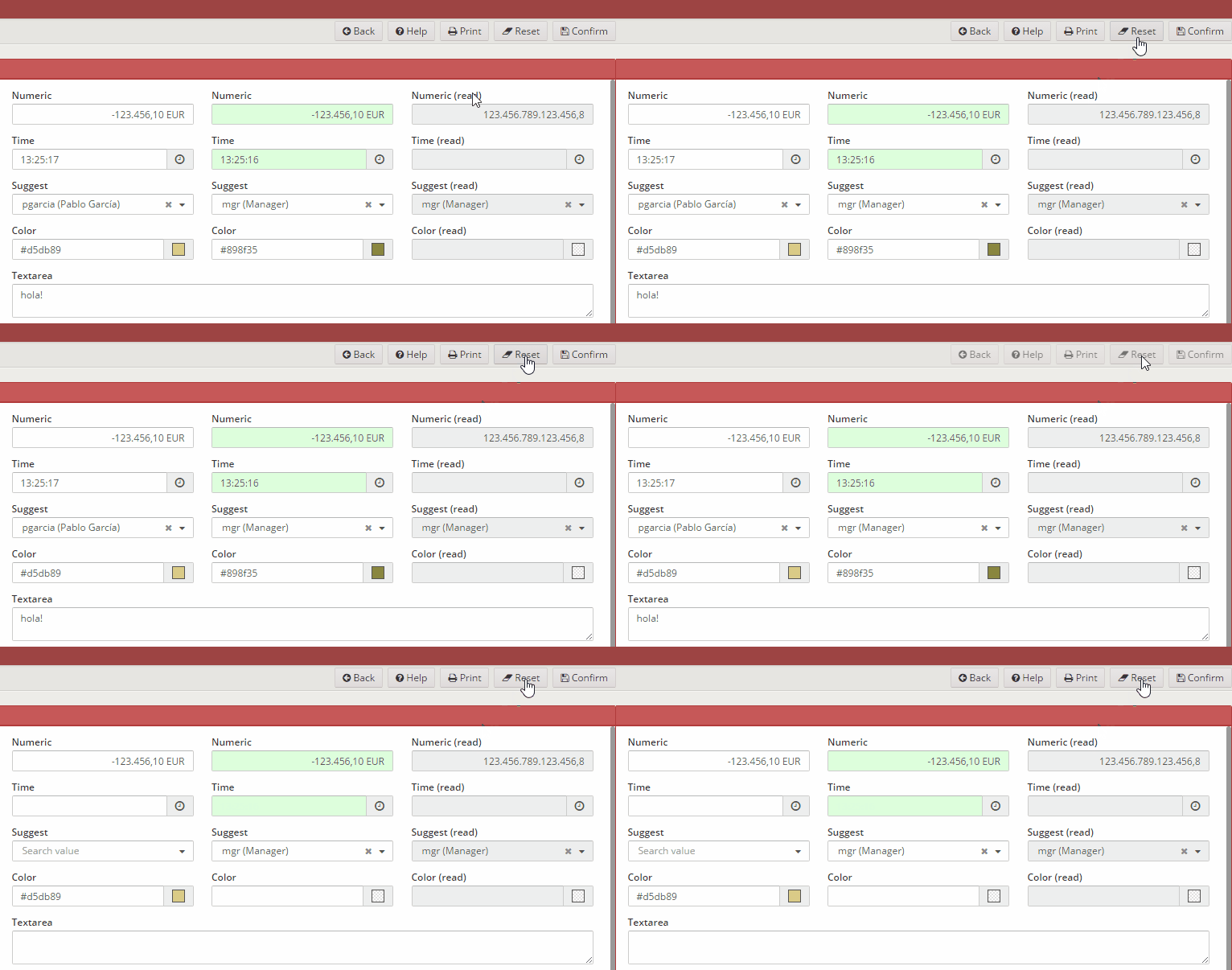
Reset everything:
<button-action type="reset"/>
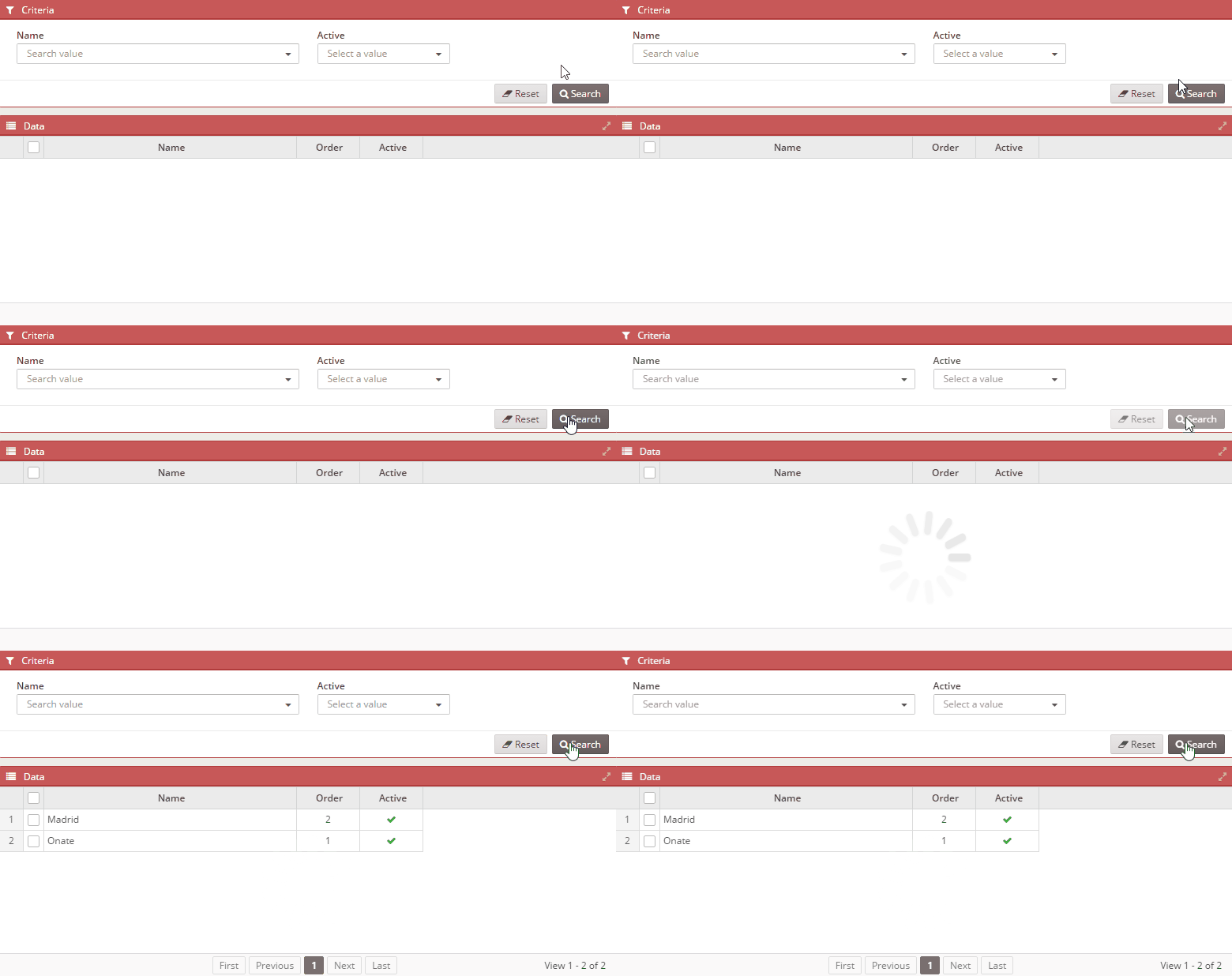
Reload a grid:
<button-action type="filter" target="customerGrid"/>
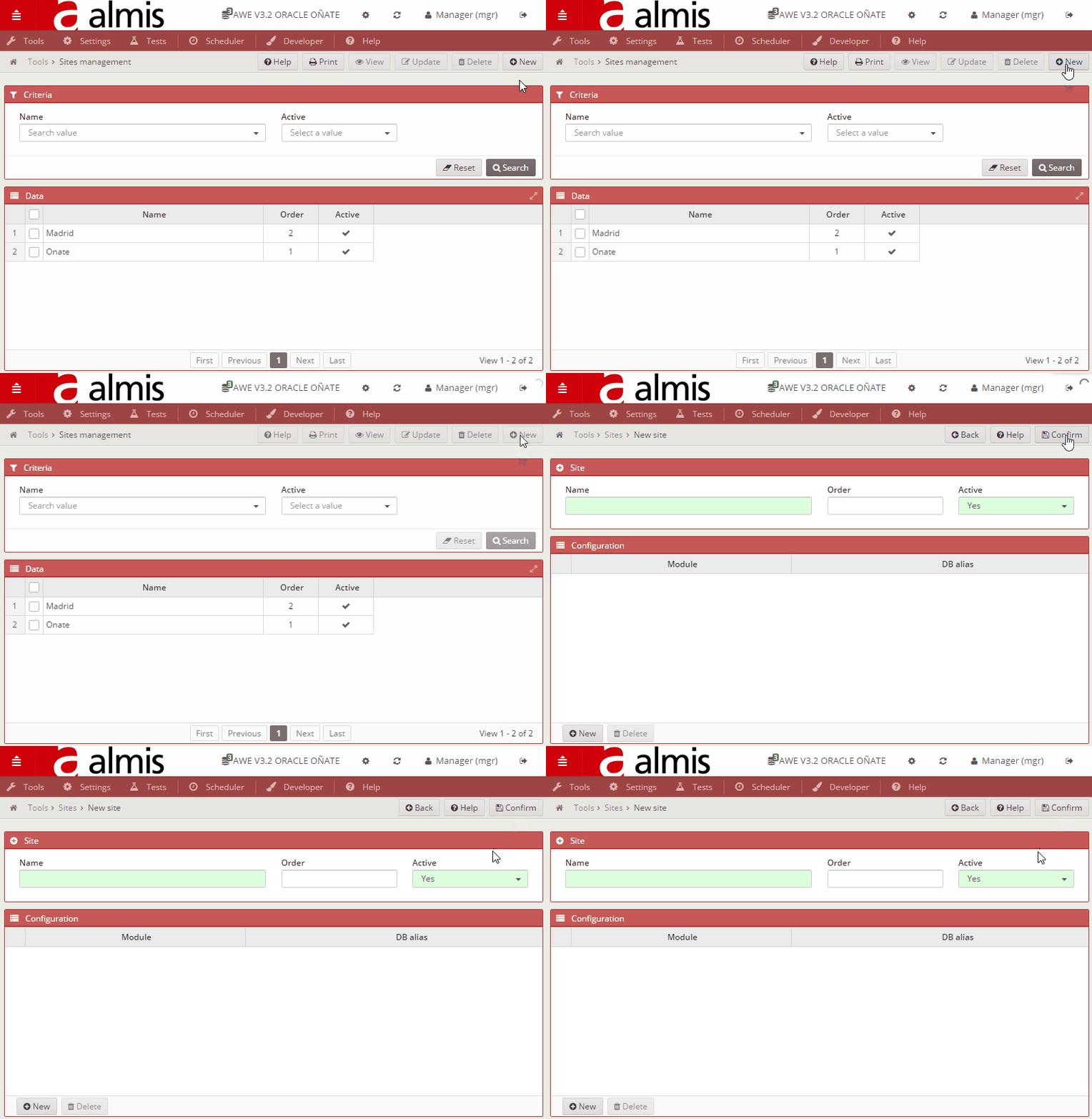
Navigate to another screen:
<button-action type="screen" target="customer-detail"/>
Ask for confirmation:
<message id="deleteConfirm" title="Delete record" message="Do you want to continue?"/>
<button-action type="confirm" target="deleteConfirm"/>
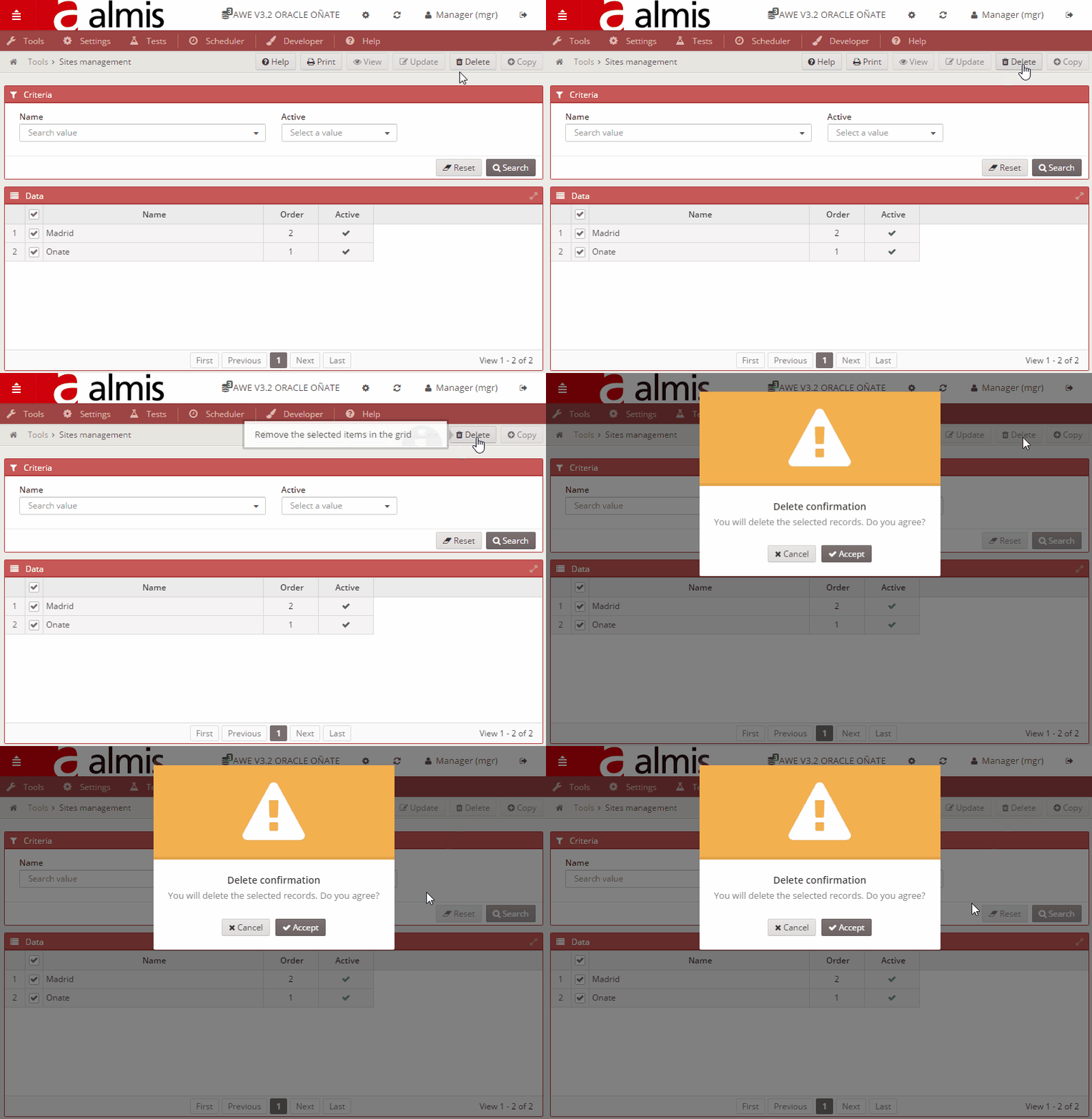
If the user cancels the confirmation dialog, the remaining pending actions in that stack are discarded.
Server-side actions
When the work must retrieve data, persist changes, or trigger backend logic, use a server action.
<button-action type="server" server-action="maintain" target-action="saveCustomer"/>
If the server returns data that should populate a component, set target as well:
<button-action type="server" server-action="data" target-action="loadCustomerSummary" target="summaryGrid"/>
Common pattern:
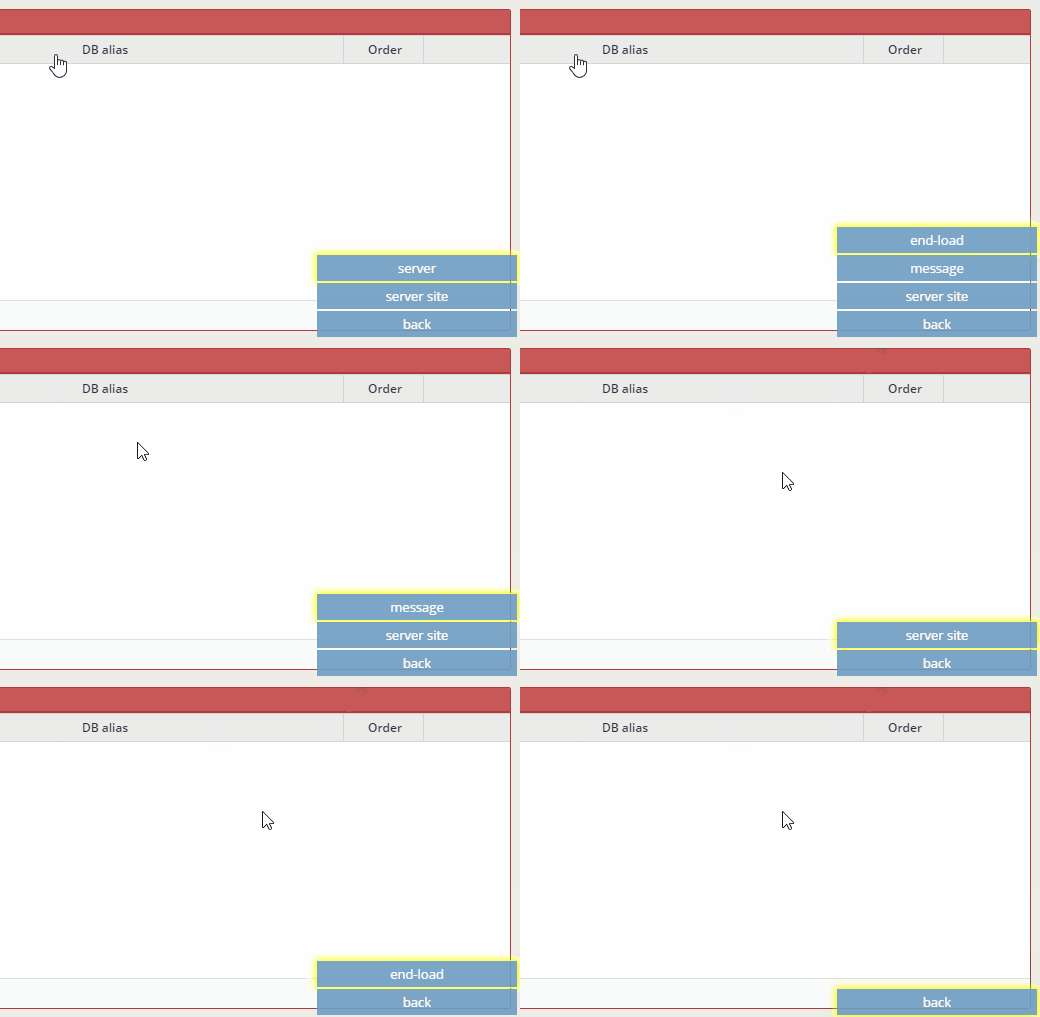
server-action="data"for query-like retrievalserver-action="maintain"ormaintain-silentfor writes
Synchronous action chains
By default, actions run synchronously in the order they are written.
<button label="BUTTON_CONFIRM" icon="save" id="ButCnf" help="HELP_CONFIRM_BUTTON">
  <button-action type="validate" />
  <button-action type="confirm" target="saveConfirm" />
  <button-action type="server" server-action="maintain" target-action="saveCustomer" />
  <button-action type="server" server-action="maintain-silent" target-action="refreshCustomerCache" />
  <button-action type="filter" target="customerGrid" />
</button>
This is the usual shape for safe write flows:
- validate
- confirm if needed
- persist
- refresh the affected component
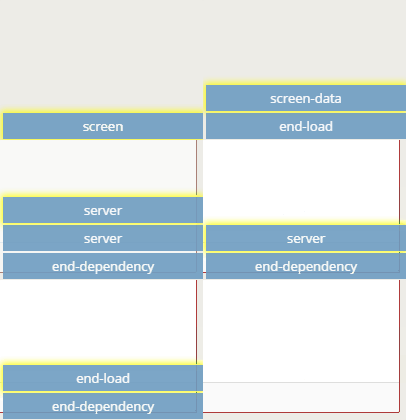
While the current synchronous stack is running, application buttons are disabled to prevent overlapping flows.
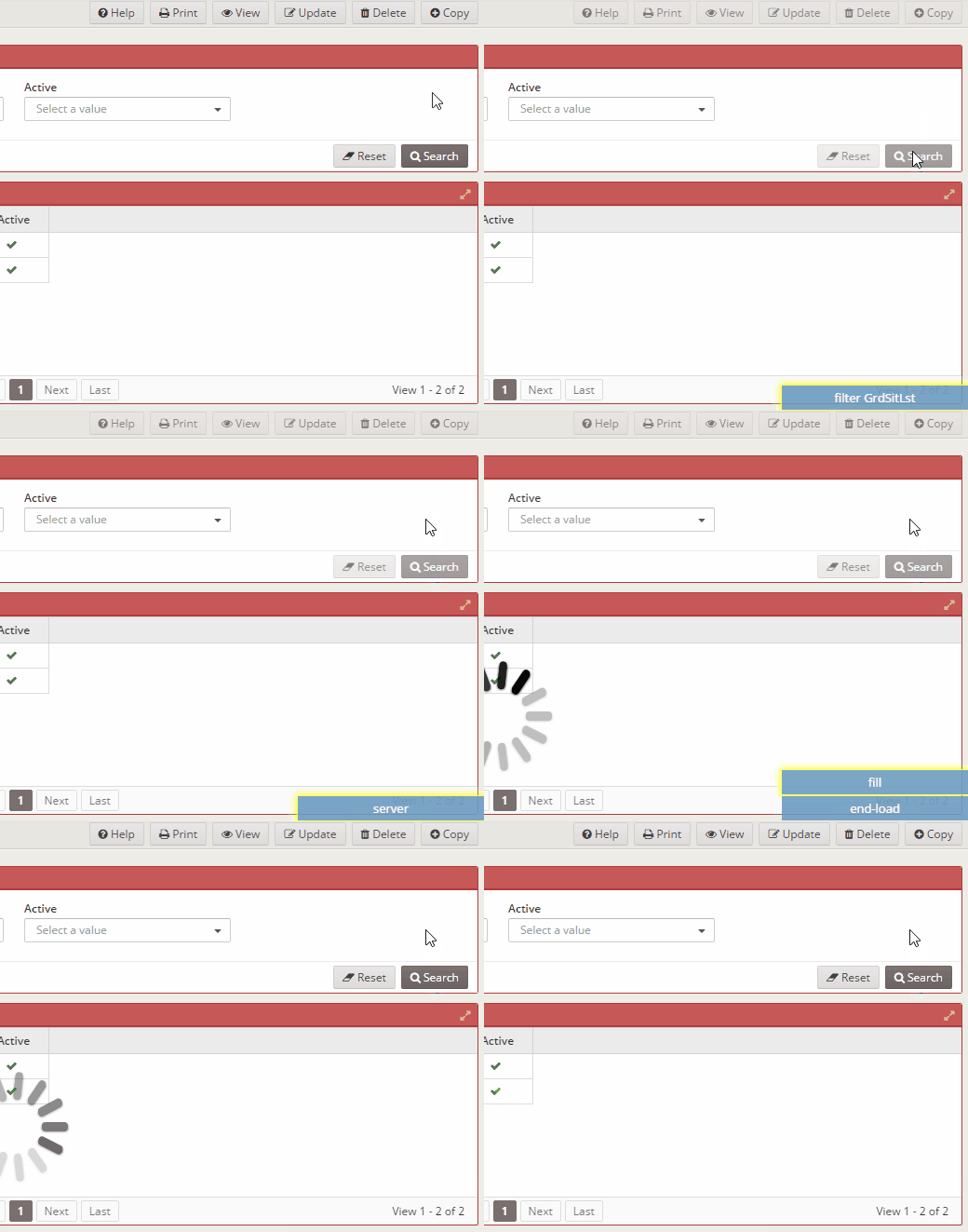
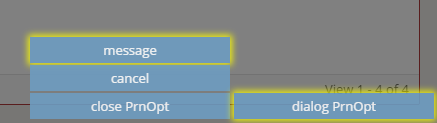
Opening a dialog creates a new current stack for that modal flow:
<button-action type="dialog" target="customerDialog"/>
Asynchronous actions
When a server call can run in parallel, use async="true".
<button-action type="server" server-action="data" target-action="loadDashboardStats" target="statsChart" async="true"/>
This still enters the normal stack first, which means earlier validation or confirmation steps can still cancel it before execution.
Use async for genuinely parallel work, not as a default.
Inspecting the action workflow
The developer tooling can slow down the action flow so you can inspect what is happening.
alt + shift + `[number]`
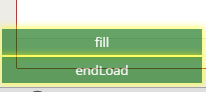
This adds a delay in seconds and displays the action stacks so you can see synchronous and asynchronous execution more clearly.
Step 2: Add dependencies deliberately
Dependencies give the screen dynamic behavior based on values, attributes, or events.
They can be defined on interactive components such as buttons, criteria, grids, and columns.
Examples:
<button ...>
  <dependency ...>
  </dependency>
</button>
<criteria ...>
  <dependency ...>
  </dependency>
</criteria>
<grid ...>
  <dependency ...>
  </dependency>
</grid>
The dependency only runs when its launchers match.
Launcher types
Value launchers
These watch component values.
<dependency ...>
  <dependency-element id="criterionA"/>
</dependency>
Runs when criterionA has any value or changes.
<dependency ...>
  <dependency-element id="criterionA" condition="eq" value="value1"/>
</dependency>
Runs when criterionA == value1.
<dependency ...>
  <dependency-element id="criterionA" condition="gt" value="3"/>
  <dependency-element id="criterionA" condition="ne" id2="criterionB"/>
</dependency>
Runs when criterionA > 3 and criterionA != criterionB.
Attribute launchers
These watch component attributes instead of the main value.
<dependency ...>
  <dependency-element id="criterionA" attribute="unit" condition="eq" value="EUR"/>
</dependency>
For grids or treegrids, attribute checks often need a column name:
<dependency ...>
  <dependency-element id="gridA" column="status" attribute="selectedRowValue" condition="eq" value="READY"/>
</dependency>
You can also recover row-relative values for calculations:
<column name="total" component="text">
  <dependency ...>
    <dependency-element id="gridA" column="price" attribute="currentRowValue" alias="priceValue"/>
    <dependency-element id="gridA" column="quantity" attribute="currentRowValue" alias="quantityValue"/>
  </dependency>
</column>
Event launchers
These react to component events.
<column name="total" component="text">
  <dependency ...>
    <dependency-element id="gridA" column="price" attribute="currentRowValue" alias="priceValue"/>
    <dependency-element id="gridA" column="quantity" attribute="currentRowValue" alias="quantityValue"/>
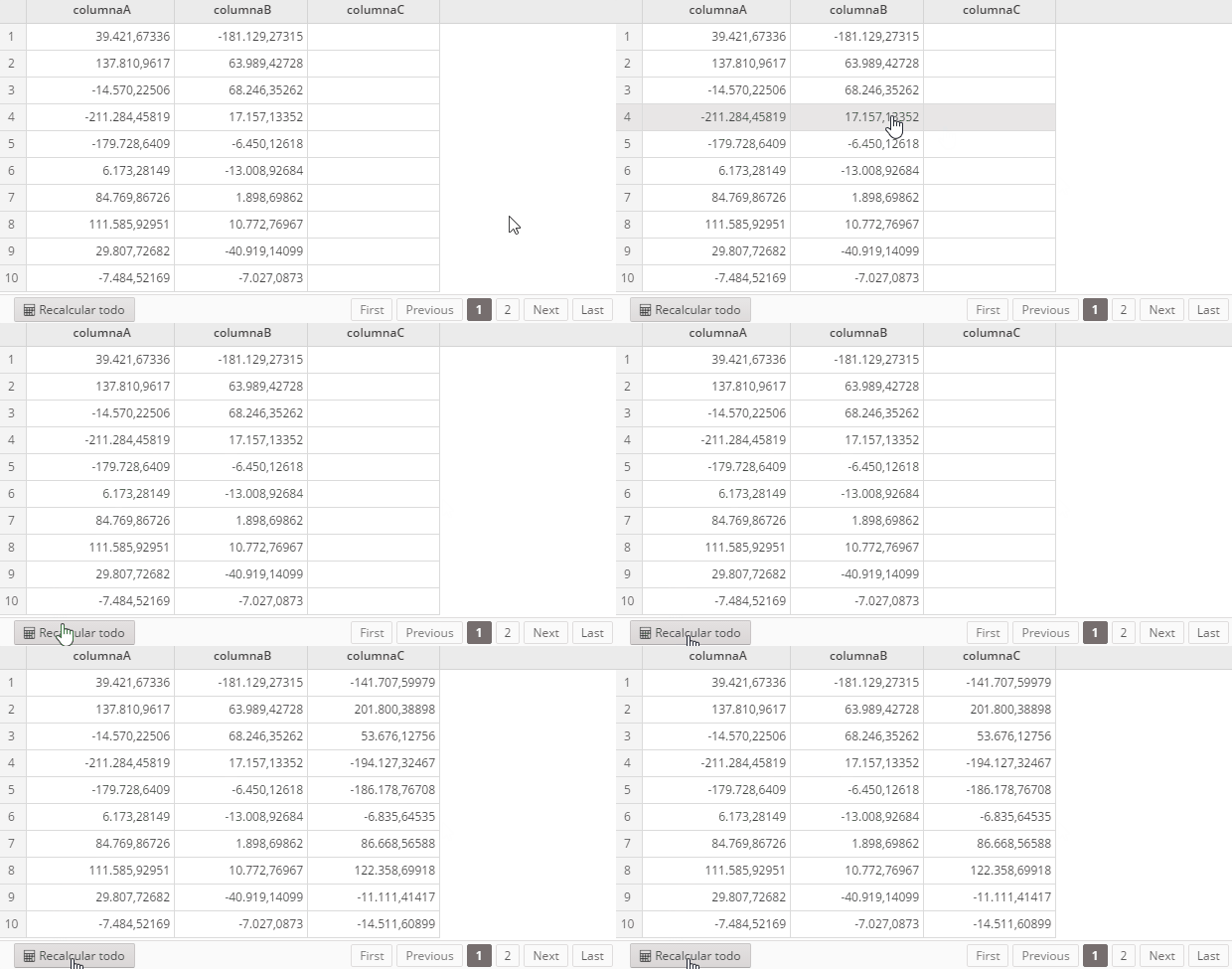
    <dependency-element id="calculateButton" event="click"/>
  </dependency>
</column>
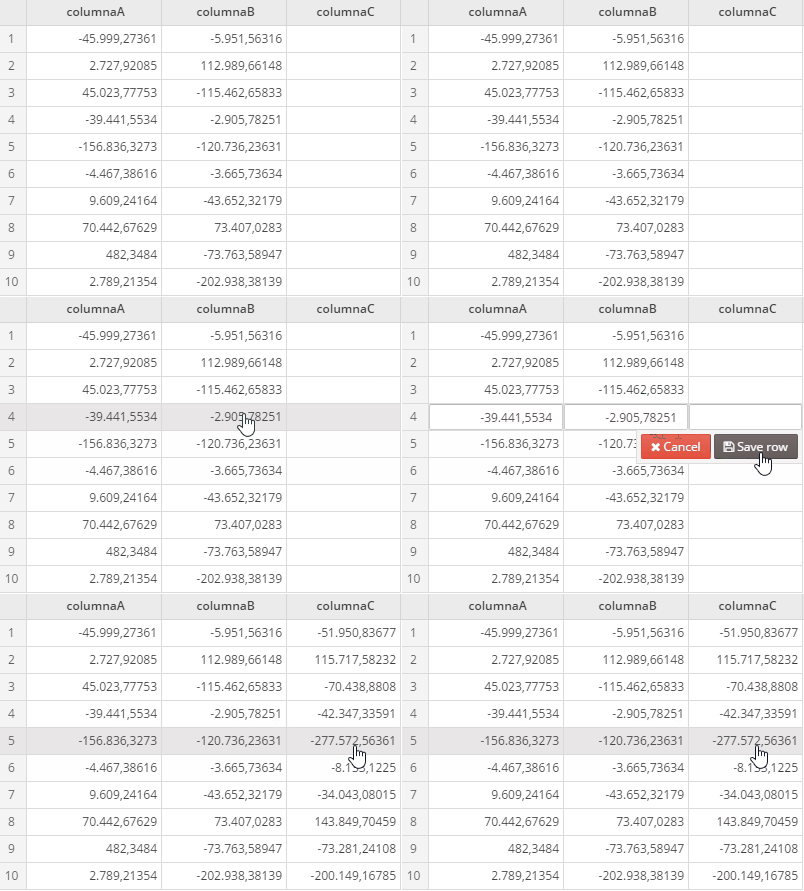
Row-save recalculation example:
<column name="total" component="text">
  <dependency ...>
    <dependency-element id="gridA" column="price" attribute="currentRowValue" alias="priceValue"/>
    <dependency-element id="gridA" column="quantity" attribute="currentRowValue" alias="quantityValue"/>
    <dependency-element id="gridA" event="save-row"/>
  </dependency>
</column>
Dependency modifiers
Initial evaluation
Use initial="true" when the dependency should also be evaluated during screen load.
<dependency initial="true" ...>
  <dependency-element id="criterionA" condition="gt" value="3"/>
  <dependency-element id="criterionA" condition="ne" id2="criterionB"/>
</dependency>
and vs or
Dependencies use and logic by default. Change it to type="or" when any launcher should be enough.
<dependency type="or" ...>
  <dependency-element id="criterionA" condition="gt" value="3"/>
  <dependency-element id="criterionA" condition="ne" id2="criterionB"/>
</dependency>
Inverted evaluation
Use invert="true" when you want the reverse condition without rewriting the full dependency expression.
<dependency invert="true" ...>
  <dependency-element id="criterionA" condition="gt" value="3"/>
  <dependency-element id="criterionA" condition="ne" id2="criterionB"/>
</dependency>
Aliases for retrieved values
Aliases let launchers feed values into formulas or dependency updates.
<criteria component="numeric" id="total">
  <dependency initial="true" source-type="formule" target-type="input" formule="[a] + [b]">
    <dependency-element id="amountA" alias="a"/>
    <dependency-element id="amountB" alias="b"/>
  </dependency>
</criteria>
Step 3: Decide what the dependency should do
Once a dependency is triggered, it can either update the current component or launch actions elsewhere.
Update the current component
source-type tells AWE where the dependency gets its data from.
Common patterns:
Copy from a launcher
<criteria component="numeric" id="copiedValue">
  <dependency source-type="launcher" target-type="input" target-action="a">
    <dependency-element id="criterionA" alias="a"/>
  </dependency>
</criteria>
Use a static value
<criteria component="text" id="staticValue">
  <dependency source-type="value" target-type="input" value="Pending review">
    <dependency-element id="criterionA" alias="a"/>
  </dependency>
</criteria>
Use a formula
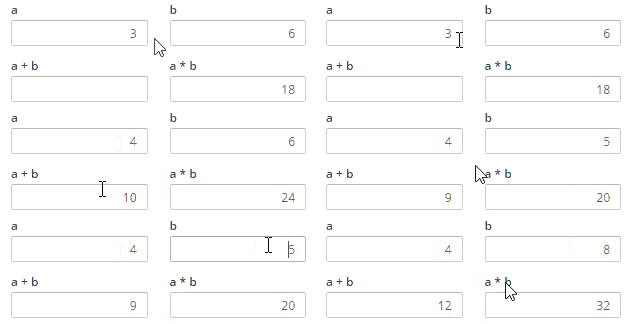
<criteria label="a" id="a" component="numeric" style="col-xs-6 col-sm-3 col-lg-2" value="3"/>
<criteria label="b" id="b" component="numeric" style="col-xs-6 col-sm-3 col-lg-2" value="6"/>
<criteria label="a + b" id="aplusb" component="numeric" style="col-xs-6 col-sm-3 col-lg-2">
  <dependency source-type="formule" target-type="input" formule="[a] + [b]">
    <dependency-element id="a"/>
    <dependency-element id="b"/>
  </dependency>
</criteria>
Use a query
<grid id="grid">
  <column name="customerName"/>
  <column name="customerStatus"/>
  <dependency source-type="query" target-type="input" server-action="data" target-action="loadCustomerDetails">
    <dependency-element id="criterionA" alias="a"/>
    <dependency-element id="criterionB" condition="ne" value="archived"/>
  </dependency>
</grid>
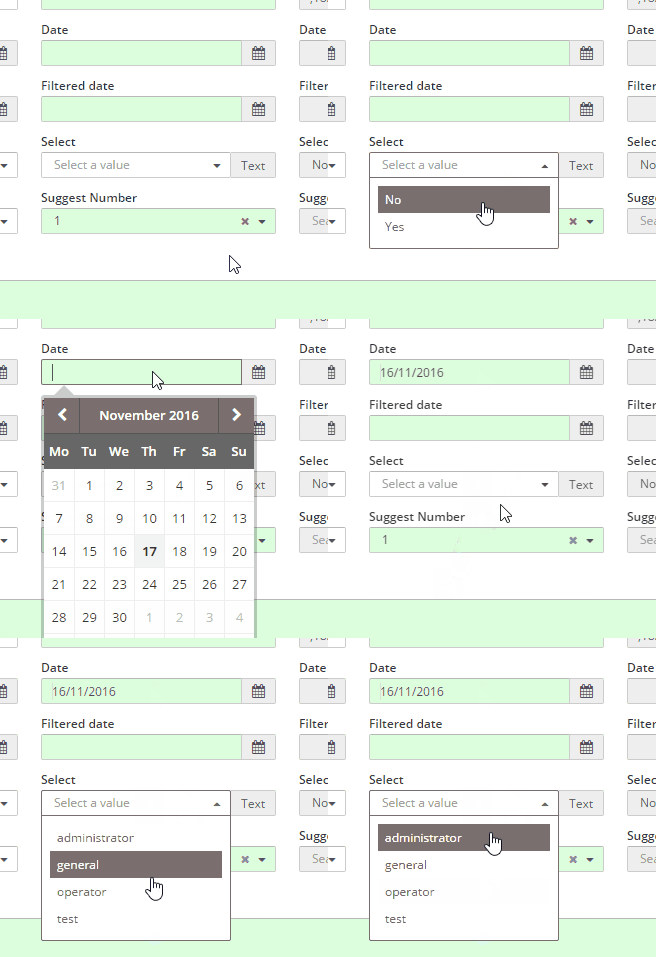
target-type then decides what part of the component gets updated: input value, label, unit, visibility, enabled state, and so on.
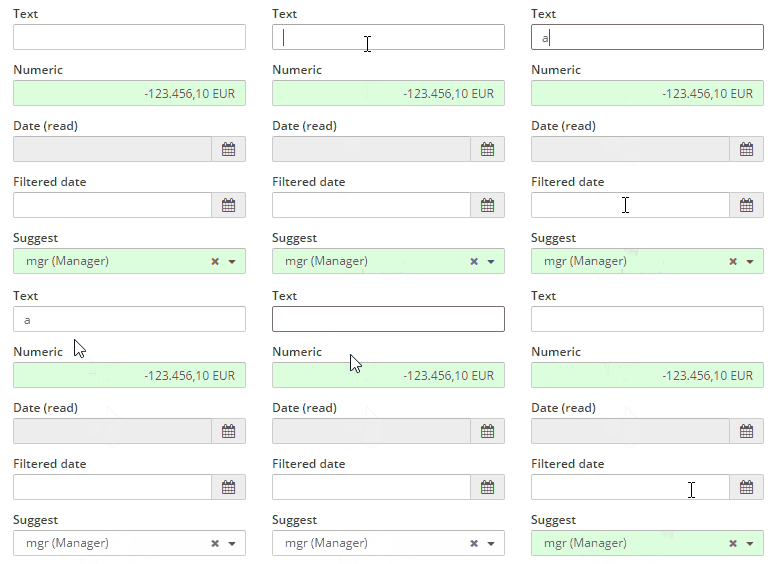
Example: enable a button only when a criterion has a specific value.
<button id="saveButton">
  <dependency target-type="enable">
    <dependency-element id="criterionA" condition="eq" value="READY"/>
  </dependency>
</button>
Example: show a criterion only when another criterion has a specific value.
<criteria id="criterionB" component="text">
  <dependency target-type="show">
    <dependency-element id="criterionA" condition="eq" value="show"/>
  </dependency>
</criteria>
Launch actions from a dependency
Some dependencies do not update their own component. They just launch actions when conditions match.
<dependency>
  <dependency-element id="gridA" attribute="selectedRows" condition="eq" value="1" />
  <dependency-element id="gridA" event="select-row" />
  <dependency-action type="server" server-action="data" target-action="loadDetailGrid" target="gridB"/>
</dependency>
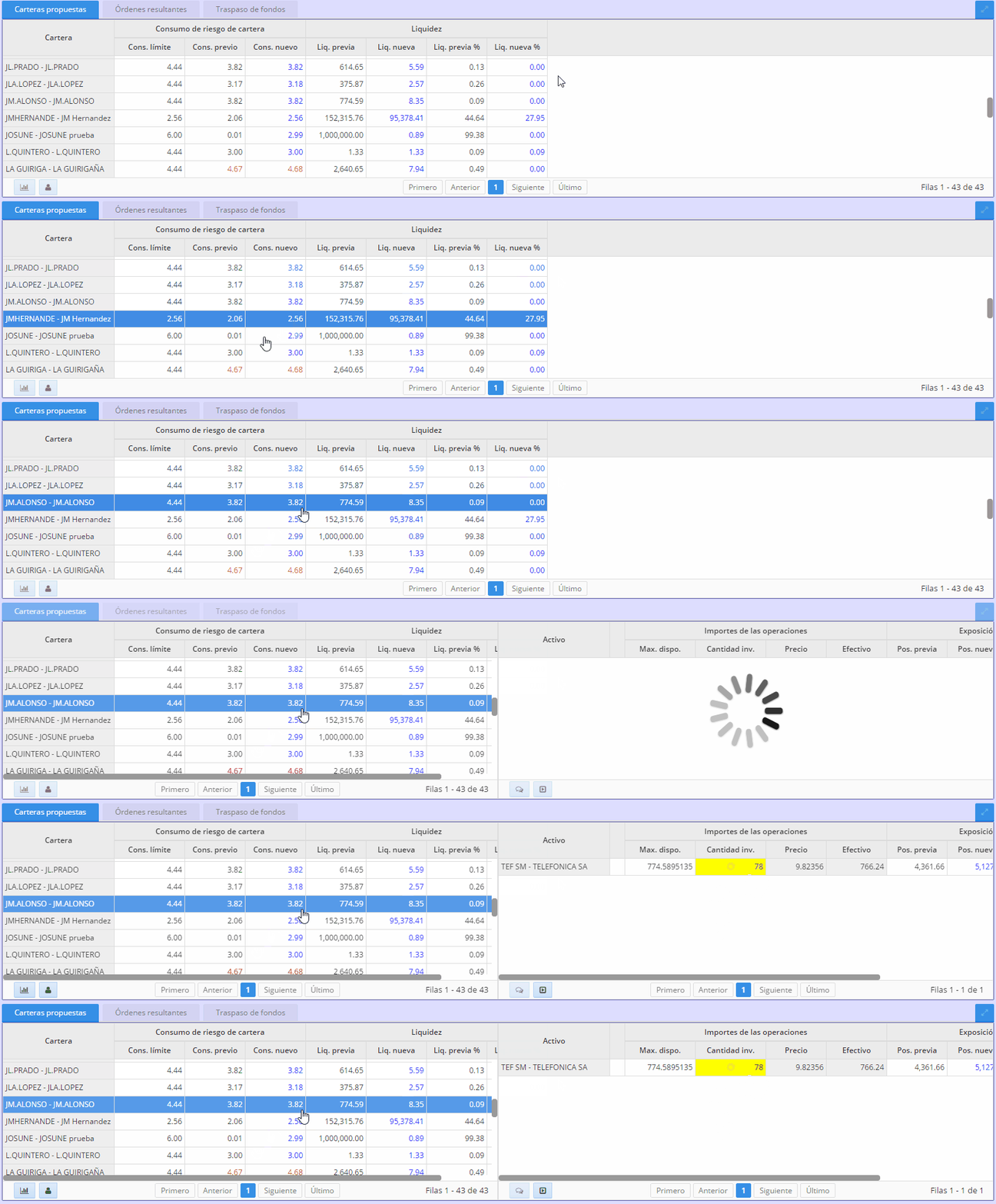
This is a common master-detail pattern: selecting a row in one grid refreshes another grid.
Execution order and performance
Dependencies are evaluated in the order they are defined. If multiple dependencies on the same component match, they execute synchronously in that order.
<criteria id="criterionA" component="hidden">
  <dependency source-type="launcher" target-type="input" target-action="value">
    <dependency-element id="criterionB" alias="value"/>
    <dependency-element id="buttonA" event="click"/>
  </dependency>
  <dependency source-type="launcher" target-type="input" target-action="value">
    <dependency-element id="criterionC" alias="value"/>
    <dependency-element id="buttonA" event="click"/>
  </dependency>
</criteria>
In that example, the second dependency can overwrite the first because it runs later.
Performance rule: dependencies are powerful, but too many of them make a screen harder to reason about and slower in the browser. Build the smallest dynamic behavior that solves the user problem.