Window
Try the window with live controls in the component catalog: the real AWE component and the XML that produces it.
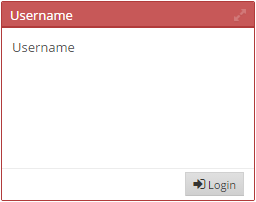
A window is a container with a title bar. It also can be maximized or restored, and it's very useful to sort groups of components in the screen.
XML skeleton
<window id="[window-identifier]" label="[window-label]" style="[window-style]"
        icon="[window-icon]" expandible="[expand-orientation]" maximize="[maximize-window]"
        advanced-mode="[advanced-mode]" saved-searches="[saved-searches]">
  <tag type="div" style="panel-body">
    ...
    <advanced>...</advanced>
  </tag>
  <tag type="div" style="panel-footer">...</tag>
  ...
  <grid>...</grid>
  ...
  <chart>...</chart>
  ...
</window>
Window structure
| Element | Use | Multiples instances | Description |
|---|---|---|---|
| window | Required | No | Global node of window. Describes the window attributes |
| tag | Optional | Yes | A tag list inside the window, usually with styles like panel-body and panel-footer |
| grid | Optional | No | A grid inside the window |
| chart | Optional | No | A chart inside the window |
| advanced | Optional | No | The advanced block of a search window: its advanced criteria, shown on demand. See advanced search |
Note There are three special styles you can use as tag styles on windows:
panel-body: A special style to define the content of a window. It adds margins to the content.panel-footer: A special style to define the bottom of a window. It is recommended to put buttons inside.expand-maximize: A special style usually combined withpanel-bodywhich expands the content of the window when it is maximized.
Window attributes
| Attribute | Use | Type | Description | Values |
|---|---|---|---|---|
| id | Optional | String | Window identifier. For reference purposes | |
| label | Optional | String | Window title | Note: You can use i18n files (locales) |
| style | Optional | String | Window CSS classes | Note: Here you can use expand class to set the window as expandible |
| icon | Optional | String | Icon identifier | Note: You can check all iconsets at icons screen |
| expandible | Optional | String | How to expand the window children | vertical (default), horizontal |
| maximize | Optional | Boolean | Whether to show the maximize icon or not | Note: Only a window with a label can be maximized |
| advanced-mode | Optional | String | How the window shows its advanced block | inline (default), side-panel. Note: Only used when the window holds an advanced block |
| saved-searches | Optional | Boolean | Whether the window shows the Saved searches menu of its advanced block | false (default), true. Note: Only used when the window holds an advanced block |
| help | Optional | String | Help text for the criterion | Note: You can use i18n files (locales) |
| help-image | Optional | String | Help image for the criterion | This must be a image path |
Examples
Expandible window with grid (maximizable)
<window style="expand" maximize="true" label="SCREEN_TEXT_DATA" icon="list">
  <grid ...>...</grid>
</window>

Static window with content and buttons zone
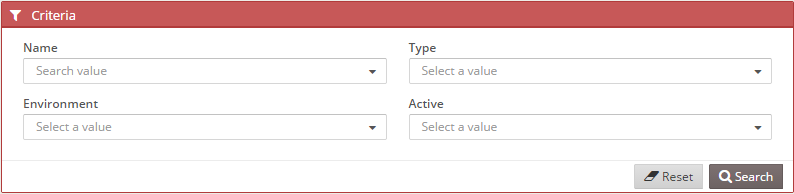
<window label="SCREEN_TEXT_CRITERIA" icon="filter">
  <tag type="div" style="panel-body">...</tag>
  <tag type="div" style="panel-footer">
    <tag type="div" style="pull-right">...</tag>
  </tag>
</window>
Advanced search
A search window can show only the criteria users need every day and keep the others at hand. Put the essential criteria
first and, right after them, an <advanced> block with the less frequent ones (and any layout tags they need). Choose
with advanced-mode how the window shows the block:
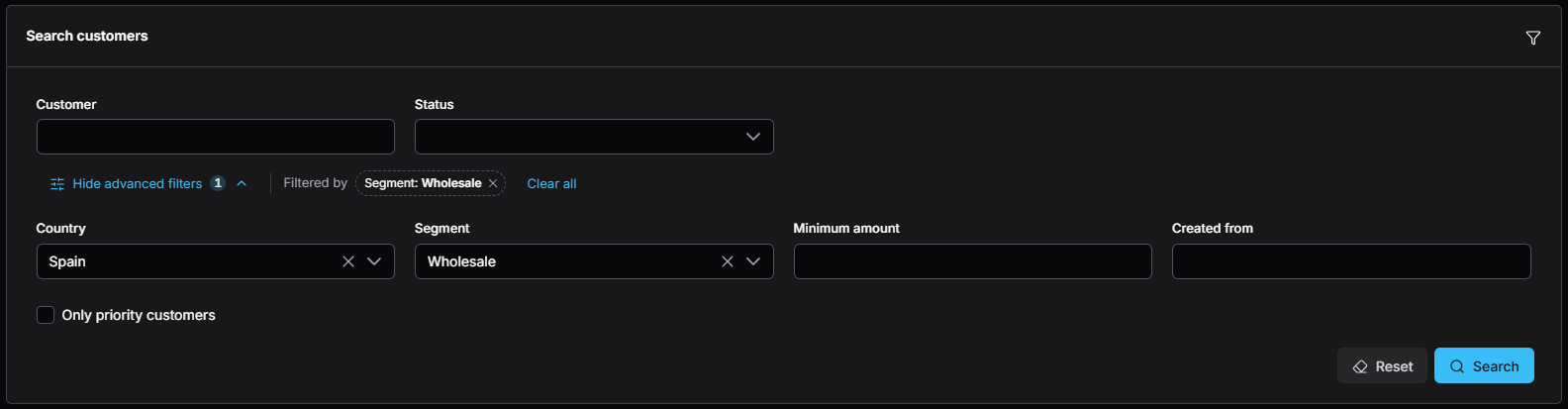
inline(default): an Advanced filters button shows the block below it, inside the window, and Hide advanced filters closes it. The button does not move when the block opens. The window remembers, per user and screen, whether the block was left open, and shows it that way the next time the screen opens.

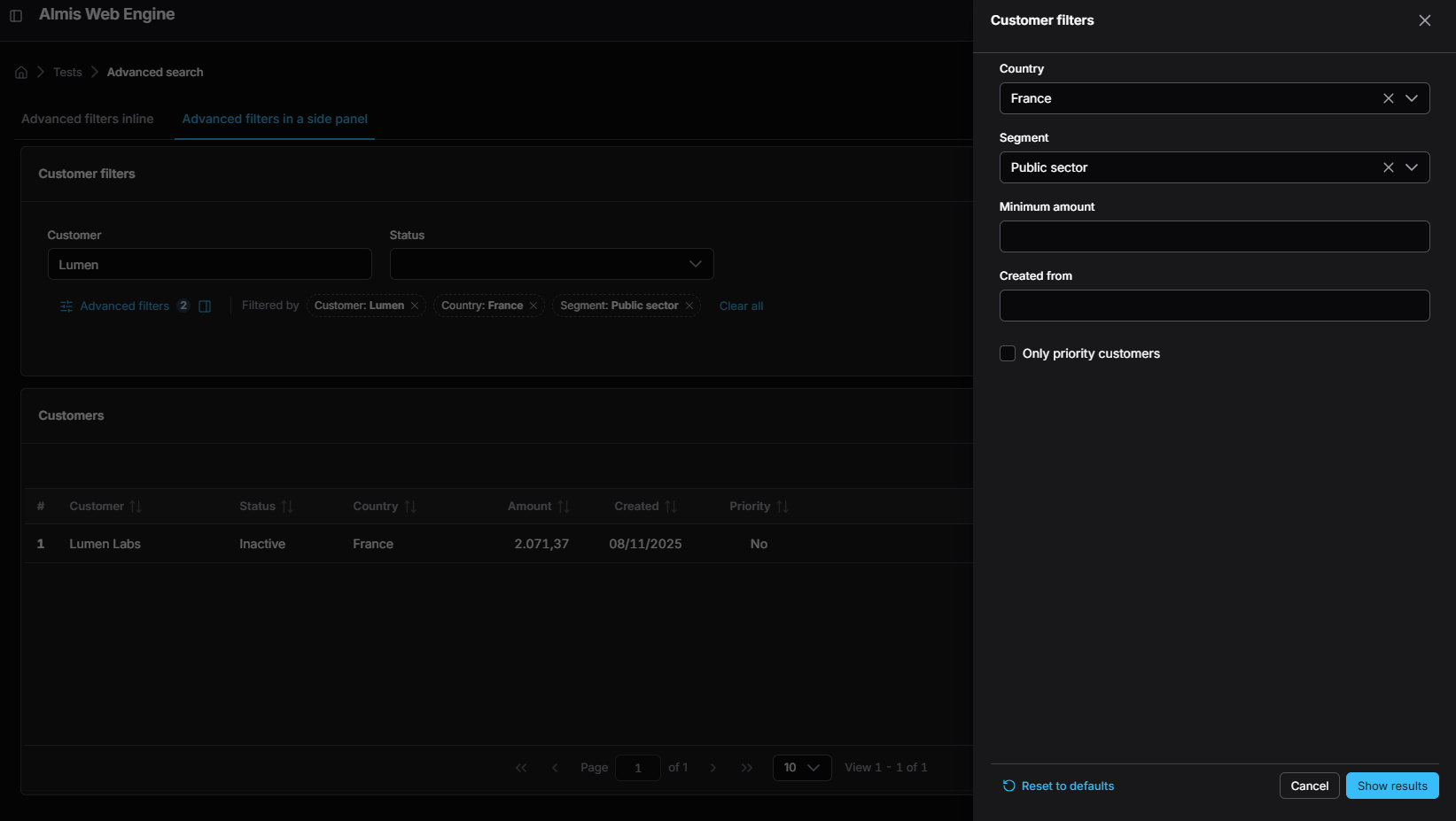
side-panel: the same Advanced filters button opens the block in a side panel titled with the window label. Reset to defaults returns the advanced criteria to their default values, Cancel (or Escape) undoes the changes made in the panel and Show results closes it and launches the search.
The button is the first element of a row that the window draws where the <advanced> block is, so the essential
criteria stay above it and the advanced ones below it (or in the panel). The button shows how many advanced criteria
have a value different from their default. After a divider, while there are filters in effect, the row lists as
Filtered by chips every criterion of the window whose value differs from its default, also the advanced ones that
are hidden (marked with an icon). Each chip clears its criterion back to its default value, and Clear all, at the
end of the row, clears them all. If a hidden advanced criterion fails a validation, the window shows it.
Show results and Enter in any criterion of the window launch the submit button of the window (button-type="submit").
The title bar and the footer of the window stay as you write them, so the search and reset buttons are ordinary
buttons with their own identifiers.
The advanced criteria are always part of the screen, so dependencies, validation, default values, initial loads,
session and variable values, printing and export work in the same way when they are hidden. Declare at most one
<advanced> block per window; it only has effect inside a window. A window without it does not change.
<window id="WinUsrCrt" label="SCREEN_TEXT_CRITERIA" icon="filter" advanced-mode="side-panel">
  <tag type="div" style="panel-body">
    <criteria id="CrtUsr" component="suggest" label="PARAMETER_USER" .../>
    <criteria id="CrtPro" component="suggest" label="PARAMETER_PROFILE" .../>
    <advanced>
      <criteria id="CrtThm" component="suggest" label="PARAMETER_THEME" .../>
      <criteria id="CrtBlk" component="select" label="PARAMETER_BLOCKED" .../>
    </advanced>
  </tag>
  <tag type="div" style="panel-footer">
    <tag type="div" style="pull-right">
      <button id="ButRst" button-type="reset" label="BUTTON_RESET" icon="eraser"/>
      <button id="ButSch" button-type="submit" label="BUTTON_SEARCH" icon="search">
        <button-action type="filter" target="GrdUsrLst"/>
      </button>
    </tag>
  </tag>
</window>
Saved searches
With saved-searches="true" a window with an <advanced> block shows a Saved searches menu right after the
Advanced filters button, so users keep the searches they run often and reuse them:
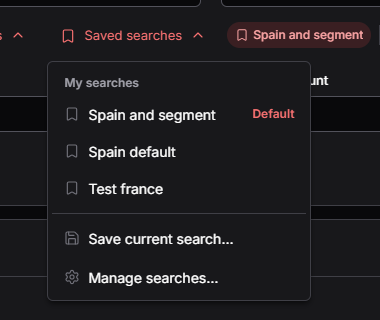
- My searches: the searches the user saved in this window. Applying one returns every criterion of the window to its default value, sets the saved values and launches the search (as Show results).
- Shared with your profile: the searches an administrator published for the profile of the user. They are applied in the same way, but only an administrator changes them. A user who may publish lists here the searches published for every profile, each with its profile, so it can rename and delete them.
- Save current search…: saves the values of the criteria of the window with a name. A name that already exists is replaced. A user allowed to publish can choose a profile instead of Only me.
- Manage searches…: renames or deletes the own searches (and the published ones, for a user allowed to publish).
The server keeps, for each search, only the values of the criteria of the window (the hidden ones are not saved), takes
the user and the profile from the session, and checks that the window offers saved searches. A user may publish when
their menu, with the restrictions of their profile and user, gives access to the option of the property
awe.saved-search.publish-option (by default profiles, the profiles screen of the Tools menu): the usual restrictions
decide who publishes, with no new tables. The searches are stored in the AweSavSch table (Flyway migration
AWE_V1.5.2). A window without the attribute does not change.
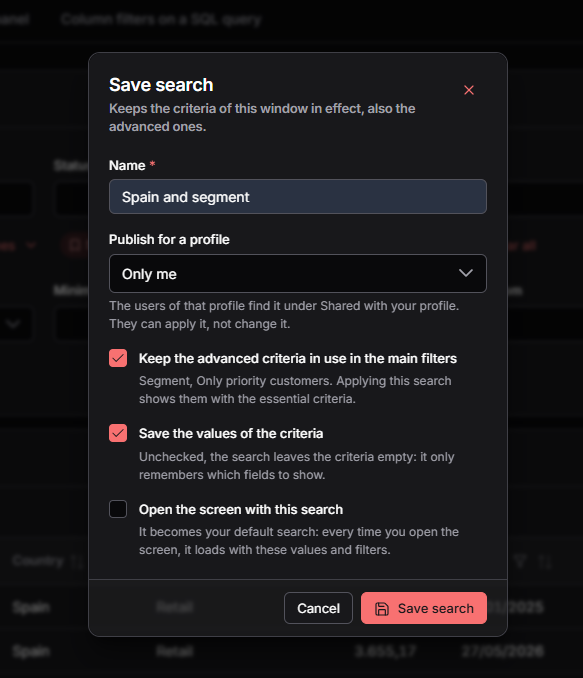
Layout of a search. The Save search dialog has two more options. Keep the advanced criteria in use in the main
filters (unchecked by default) saves the layout of the search: applying it shows those
criteria in the main row, after the essential ones, while the rest go back to the advanced block. Only the direct
children of <advanced> move, and they keep working as before (dependencies, validation, values kept in the session);
they are not counted in the badge of Advanced filters and their chips are not marked as hidden. Save the values of
the criteria (checked) can be cleared to save only the layout: applying that search shows those criteria empty. A
search saved without a layout shows the criteria as the screen declares them.
Default search. A search can open the window:
-
Open the screen with this search, in the Save search dialog, or Set as my default in Manage searches… makes it the default search of the user for that window. The menu marks it as Default. It may be an own search or one published for the profile of the user.
-
A user who may publish marks a published search as the default of its profile with Set as the profile default (marked Profile default). The default of the user wins over the default of the profile.
-
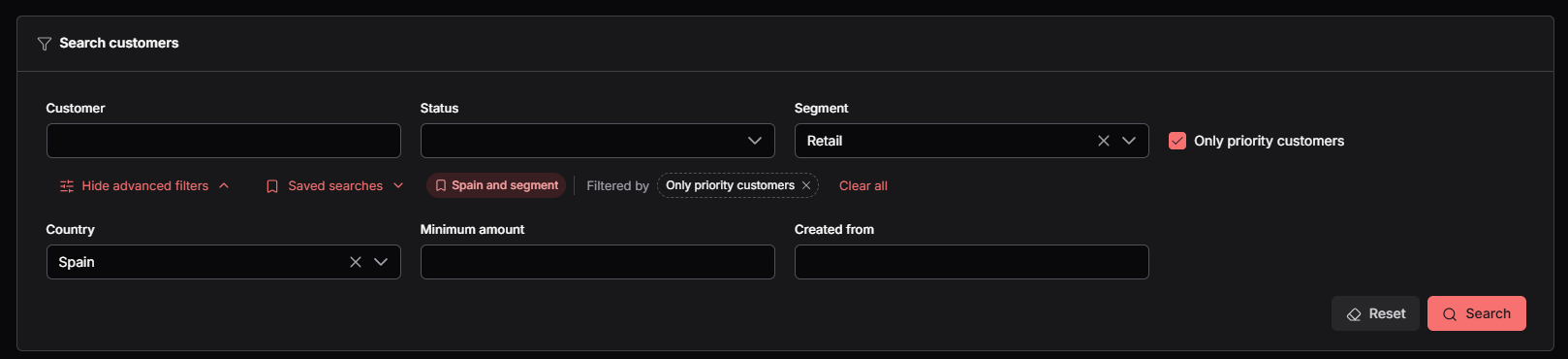
The server applies the default search before the initial load, so the grid loads once, already filtered, without pressing the search button. It applies it only when the criteria kept in the session for the screen bring nothing for the window, and a context variable still wins over its value. A chip next to Saved searches names the default search applied, until another search is applied or Clear all is used.
-
While a default search is applied, the reset buttons of the window and Reset to defaults return the criteria to the values and the layout of the default search; Clear all returns them to the values of the XML and leaves the layout as it is.
-
A search that names a criterion the window no longer has is applied without it, with no error.
All of it is part of saved-searches="true": there is no new attribute, and a window without it does not change. The
default of the user is stored in AweUsrWinCnf.DefSavSch and the default of a profile in AweSavSch.Def (Flyway
migration AWE_V1.6.1).
<window id="WinUsrCrt" label="SCREEN_TEXT_CRITERIA" icon="filter" saved-searches="true">
  ...
</window>
AngularJS and React engines
Both engines handle expandible, icon and maximize in the same way:
expandiblesets the direction in which the window shares the space among its children (verticalby default).iconis drawn in the title bar, before the label of the window.maximize="true"shows a button in the title bar that maximizes the window over the content of the screen and restores it. The window fills the content area, keeping the menu and the top bar visible, and its sibling windows are hidden while it is maximized. The Restore button brings it back; there is no Escape key shortcut. The content with theexpand-maximizestyle takes the free space while the window is maximized.
The differences are only visual: the maximize button shows the Lucide expand and shrink icons in the AngularJS
engine and maximize and minimize in the React engine.