Pivot Table
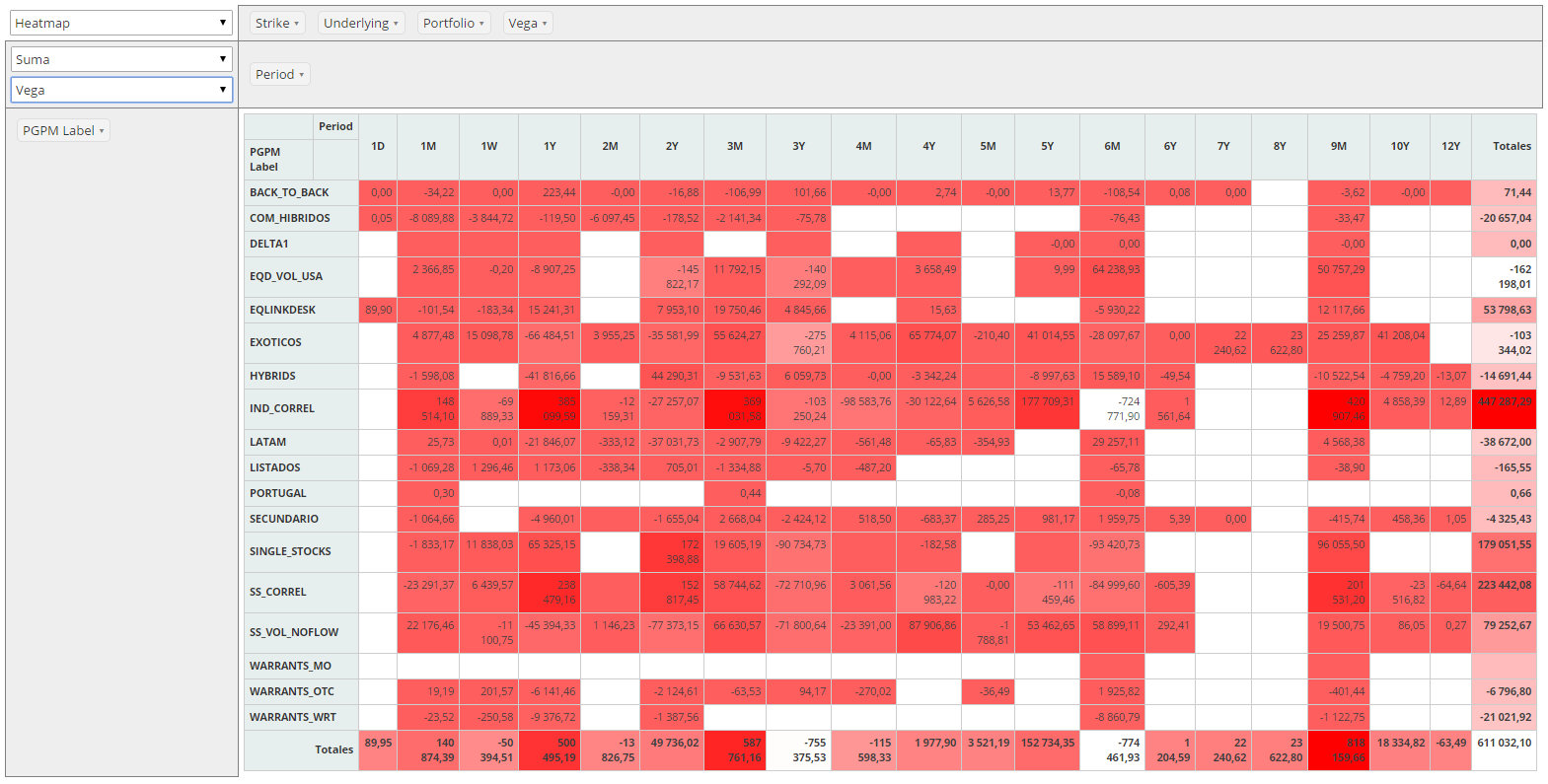
The pivot table is an analytic component. It loads the rows of a query and lets the user build a report from them: the user drags the fields to the rows and to the columns, picks an aggregation (count, sum, average...) and a renderer (table, heat map...), and the table is calculated in the browser.
When to use it
Use a pivot table when the user must explore a set of data (group it, total it, cross it) and you do not know in advance which groups they will need. If the report is fixed, a grid with the right query is simpler and supports paging, editing and selection.
The pivot table works on all the rows that the query returns: the grouping and the totals are calculated by the client, not by the server. Because of that:
- Set
max="0"to load every row. Whenmaxis not set, the initial load asks the server for a page of rows, like a grid does (30 rows by default, seeawe.application.component.grid-rows-per-pagein properties), and the pivot would only use those rows. - Keep the query to the fields the user needs. Every field of the query becomes a field of the pivot table.
XML skeleton
<pivot-table id="[pivot-id]" initial-load="query" target-action="[query-id]" max="0"
             rows="[fields]" cols="[fields]" aggregator="[aggregator]" aggregation-field="[field]"
             style="expand"/>
A pivot table can contain these child elements: context-button, context-separator (see
context menu) and dependency (see dependencies).
Attributes
The attributes are the ones of the screen.xsd schema (see XSD tooling).
Identification and data loading
| Attribute | Use | Type | Description | Values / default |
|---|---|---|---|---|
| id | Required | String | Identifier of the pivot table. It must be unique in the screen | |
| style | Optional | String | CSS classes of the pivot table | Use expand to fill the available space (see layout) |
| initial-load | Optional | String | Where the data comes from on the initial load | query (the usual one), enum, value |
| server-action | Optional | String | Server action that reloads the data | See the server action list |
| target-action | Optional | String | Query that returns the data | Query identifier |
| max | Optional | Integer | Maximum number of rows to load | 0 loads every row. Default: the grid page size (30) |
| autoload | Optional | Boolean | Launches the target-action when the screen is initialized | AngularJS engine only |
| autorefresh | Optional | Integer | Launches the target-action every X seconds | AngularJS engine only |
Initial layout of the table
The user can change all of these in the browser. The attributes only set what the user sees when the table is first drawn.
| Attribute | Use | Type | Description | Values / default |
|---|---|---|---|---|
| rows | Optional | String | Fields that start in the rows | Field names separated by commas |
| cols | Optional | String | Fields that start in the columns | Field names separated by commas |
| renderer | Optional | String | Renderer selected at the start | Table (default), Table Barchart, Heatmap, Row Heatmap, Col Heatmap |
| aggregator | Optional | String | Aggregator selected at the start | See aggregators. Default: Count |
| aggregation-field | Optional | String | Field that the aggregator works on | A field of the query. Not needed for Count |
| sort-method | Optional | String | How the values of a field are sorted | natural (default), absolute (by absolute numeric value) |
| total-row-placement | Optional | String | Where the row with the totals is drawn | top, bottom (default) |
| total-column-placement | Optional | String | Where the column with the totals is drawn | left, right (default) |
Number format
| Attribute | Use | Type | Description | Values / default |
|---|---|---|---|---|
| decimal-numbers | Optional | Integer | Number of decimals of the results | Default: the decimals of the numeric options of the application, or 0 |
| thousand-separator | Optional | String | Thousands separator | Default: the one of the numeric options of the application |
| decimal-separator | Optional | String | Decimal separator | Default: the one of the numeric options of the application |
The three attributes are only applied by the custom aggregators (Custom Sum, Custom Average...) of the
AngularJS engine. The standard aggregators format the numbers with the default format of the library, and the
custom aggregators exist only when the aggregator attribute is set.
Aggregators
The aggregator attribute accepts these values:
| Group | Values |
|---|---|
| Count | Count, Count Unique Values, List Unique Values |
| Sum and statistics | Sum, Integer Sum, Average, Minimum, Maximum, Sum over Sum, 80% Upper Bound, 80% Lower Bound |
| Fractions | Sum as Fraction of Total, Sum as Fraction of Rows, Sum as Fraction of Columns, Count as Fraction of Total, Count as Fraction of Rows, Count as Fraction of Columns |
| Custom (number format) | Custom Sum, Custom Average, Custom Minimum, Custom Maximum, Custom Sum over Sum, Custom 80% Upper Bound, Custom 80% Lower Bound |
The custom aggregators are the same as the standard ones but they use the format defined by decimal-numbers,
thousand-separator and decimal-separator.
Note:
Custom 80% Upper BoundandCustom 80% Lower Bounddo not apply the custom number format, and both calculate the upper bound. Use80% Upper Boundand80% Lower Boundinstead.
Example
The pivot table of the test screen pivot-test groups the rows of a query by the Als field and sums the Prg1
field. The user can change the groups, the aggregator and the renderer on the screen:
<window label="SCREEN_TEXT_DATA" style="expand" expandible="vertical">
  <tag type="div" style="panel-body expand scrollable-both" expandible="vertical">
    <pivot-table id="listaDatos" initial-load="query" target-action="QryUniTstId" max="0"
                 cols="Als" aggregation-field="Prg1" style="expand"/>
  </tag>
</window>
To reload the data (for example from a search button, as the test screen does) use the filter action on the pivot
table:
<button button-type="submit" label="BUTTON_SEARCH" icon="search" id="ButSch">
  <button-action type="filter" target="listaDatos"/>
</button>
This example is the pivot table of the test screen pivot-test (awe-tests/awe-boot and awe-tests/awe-boot-react),
with max="0" added.
Changing the groups from the server
Three client actions change the table from a service or a dependency:
| Action | Parameter | Description |
|---|---|---|
set-pivot-group-rows | rows | Sets the fields of the rows, as a comma-separated list |
set-pivot-group-cols | cols | Sets the fields of the columns, as a comma-separated list |
set-pivot-sorters | sorters | Sets the order of the values of each field |
AngularJS and React engines
The pivot table is drawn with a different library in each engine, and the XML attributes are not equivalent:
| Feature | AngularJS engine | React engine |
|---|---|---|
| Library | PivotTable.js (jQuery), included in AWE | react-pivottable 0.11 |
rows, cols | Applied | Applied |
renderer, aggregator, aggregation-field | Applied | Applied as initial values (Table Barchart included) |
sort-method | Applied | Applied |
total-row-placement, total-column-placement | Applied | Not applied: the totals are always on the right and at the bottom |
decimal-numbers, thousand-separator, decimal-separator, custom aggregators | Applied | Applied: the Custom ... aggregators exist |
Actions set-pivot-group-rows, set-pivot-group-cols, set-pivot-sorters | Applied | Applied |
Context menu (context-button) | Available | Available (right click on the pivot table) |
autoload, autorefresh | Applied | Ignored |
| Texts of the table | Translated (English, Spanish, Basque, French) | Always in English |
| Maximum number of values listed in the filter of a field | awe.application.component.pivot-num-group (5000) | pivotOptions.numGroup setting (5000) |
In the React engine the XML attributes are initial values: the user can still change the renderer and the aggregator
in the table, and those choices are kept while the screen is open. The Table Barchart renderer works in both engines,
with the bars of each row (and of the totals row) scaled on their own; negative values, and rows without a positive maximum, draw no bar. The only difference
left is the total placement (total-row-placement, total-column-placement): react-pivottable always draws the totals
on the right and at the bottom, which is the AngularJS default. The attributes do not break the screen.
Related pages
- Grids: when the report is fixed or the rows must be edited or paged.
- Query definition: the query that feeds the table.
- Layout: how
style="expand"makes the table fill its container. - Actions: the
filteraction and the pivot actions. - Dependencies and context menu: the child elements.
Reviewed for AWE 5.